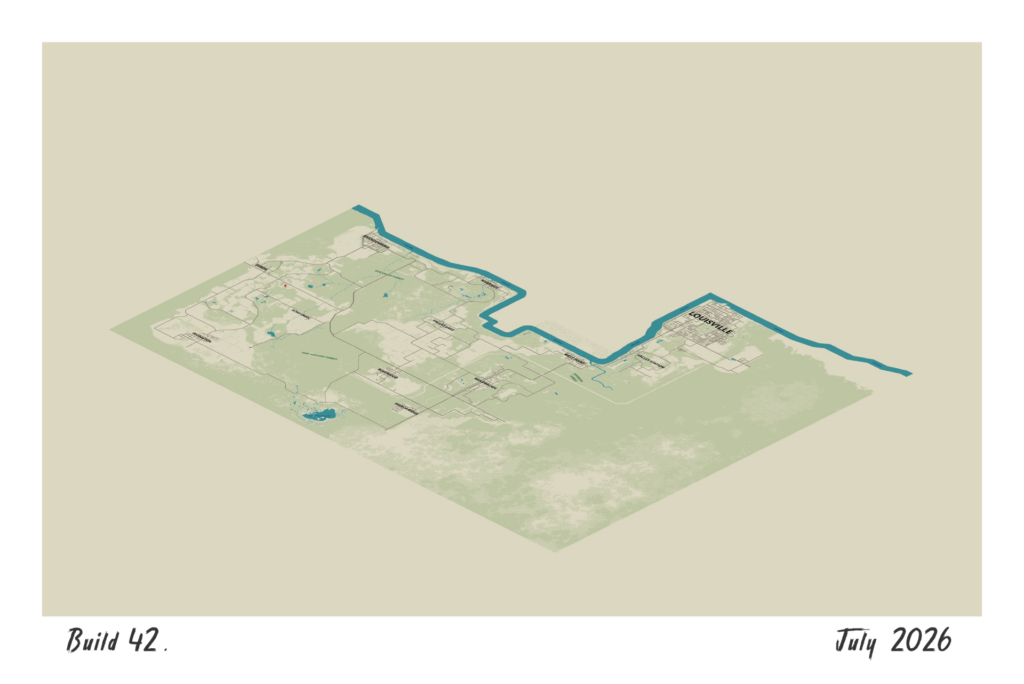
Build 42 reference · Not current-build play-tested
Browser-checked 19 October 2026: zomboidmap.com v1.10.0 displayed Build 42.20, loaded map imagery, returned Echo Creek Town and Echo Creek Road, and accepted Ground floor / Room interiors. This verifies the viewer workflow, not every location in the current game. The official pzmap.org viewer exposed its shell and support dialog but did not load map data in this check; that is a local observation, not a global outage claim.
Choose a Build 42 map that has actually loaded
Open the community Build 42 map ↗. Confirm that roads, town labels and map imagery appear—not just a toolbar. Read the build label above the search box before comparing it with your game.
The Indie Stone also links to the official Game Map project ↗, currently reached through pzmap.org. These are different viewers with different controls. Do not assume a selected floor or feature carries over between them.
On a narrow screen, use the panel toggle to make room for the map. Use Language to select English if you want the exact labels below.
Find Echo Creek without guessing coordinates
- In Search, or jump to “x, y”, type Echo Creek.
- Choose Echo Creek — Town, not Echo Creek Road — Street. Both appeared in the checked results.
- Let the viewer center the result. Zoom in and compare a road junction or building outline with your in-game surroundings.
- For another town, repeat with its in-game name. A search result identifies a map feature; it does not promise an item, survivor spawn or safe path.
To find a type of building, keep Points of interest enabled and use categories such as Gas, Police or Library & books. A category is a location aid, not a guaranteed loot roll.
Switch from All floors to the floor you need
- Select Ground floor in the floor control. The indicator changes from All to F0.
- Enable Room interiors in the feature panel, then zoom in. Its label says zoom in · follows floor.
- Use the floor + / − controls, or the displayed [ and ] shortcuts, to change floors. Check the indicator rather than judging from a roof silhouette.
- Return to All floors for the composite view.
Quick check: All → Ground floor → F0 → Room interiors. If an interior is hidden, check zoom and floor first. An online render does not prove the exact basement or interior generated in your own save.
Keep layers, coordinates and save tools separate
The checked viewer exposes street names, points of interest, room interiors and optional overlays. Turn on only what answers your question; a dense overlay can hide a road or entrance.
On-screen help advertises right-click for coordinates and measurement. A coordinate belongs to that viewer and map build. This guide supplies no unverified coordinates, item-spawn guarantees or route times.
Do not use save trimming to fix a blank map. The separate pzmap project includes save-management tools. The procedure above only reads an online map: searching a town requires no save upload, deletion or trimming.
If pzmap.org stays black or has empty selectors
- Use Map not loading? Click here if shown. Its support dialog recommends a hard refresh with Control + F5 or Control + Shift + R.
- If that fails, try the community viewer above. Read its build label again; different viewers may render different map versions.
- Check browser extensions or network restrictions. Re-enable an extension after testing without it. A failed session is not proof of a global outage.
Do not delete map_visited.bin, rename your world or change Steam branches to repair a web page. Clearing browser data can also clear local preferences or saved marks; export anything important before doing so.
Why the online map may differ from your save
- Map build: the checked viewer displayed Build 42.20. That does not guarantee a match to every later patch.
- World and mods: check game version, world creation version and enabled map mods. A base-game viewer cannot confirm a modded building in your save.
- Generated content: the official Build 42 overview describes basements and generated locations. Use the render for orientation, then verify the actual entrance and layout in game.
- Save compatibility: the developer states that 42.19 saves cannot transfer to 42.20. Switching a web map does not convert a world; use the save-version guide for that separate problem.
What this walkthrough verifies
The task is complete when a loaded viewer finds your town and shows the selected floor context. Search, town selection, F0 and the Room interiors toggle were checked in a real browser. This is not an in-game playtest, a complete location database or a guarantee of loot, spawn points, generated basements or mod compatibility.
For the checked example, continue with Echo Creek spawn troubleshooting. Map discovery and whether your character can spawn there are different questions.
Sources & version notes
Research-based; not independently play-tested on 42.20.4. Core advice cross-checked against the references below.
- Community map: Build 42.20 / v1.10.0 viewer, browser-checked 19 October 2026 ↗
- Map creator announcement and independent player feedback ↗
- The Indie Stone: official mapping project and Build 42 support ↗
- PZmap: current interface and Map not loading support dialog ↗
- The Indie Stone: Build 42.20 basements and generated locations ↗
- The Indie Stone: Build 42.20 release and 42.19 save compatibility ↗